Autodesk Fusion workflow
Fusion 360 to Revit: create a lighting family with IES
For a Fusion 360 to Revit family workflow, prepare a copy containing the required solid bodies, then export SAT from an eligible Fusion licence. Check the actual file is text SAT 7.0/4.0 and verify dimensions before pairing it with IES. BIMMER does not directly accept F3D files.
Before you upload
Fusion: export the correct SAT
BIMMER needs text SAT + IES. Export the geometry first; native CAD, STEP and binary SAB are not direct uploads.
- Text .sat
- ACIS 7.0 or 4.0
- Solid geometry
- Known units · mm preferred
- Prepare a dedicated design containing only the luminaire solids needed for BIM. For a large assembly, collect the required bodies in this design with their original positions; keep them separate instead of joining the whole fitting.
- Remove fixings and hidden internals; name the emitting body clearly and confirm all required objects are solids. Set the design units to millimetres.
- Choose File → Export → SAT Files (*.sat). Fusion uses SAT 7 with no separate version selector. Personal-use licences do not include SAT export; if it is unavailable, use STEP and a SAT-capable intermediary.
- Inspect the actual SAT header for version 700 (7.0) or 400 (4.0), then compare body count and a known dimension. Do not rename SMT to SAT or edit a header to force compatibility.
- Upload the SAT with its IES to BIMMER, generate and validate the RFA in Revit.
Names help detection. Name the actual light-source parts Lens, Optic, COB, LED, Lamp or Glass. Keep holders labelled as holders; name mounting parts Canopy, Mounting foot or Backplate.
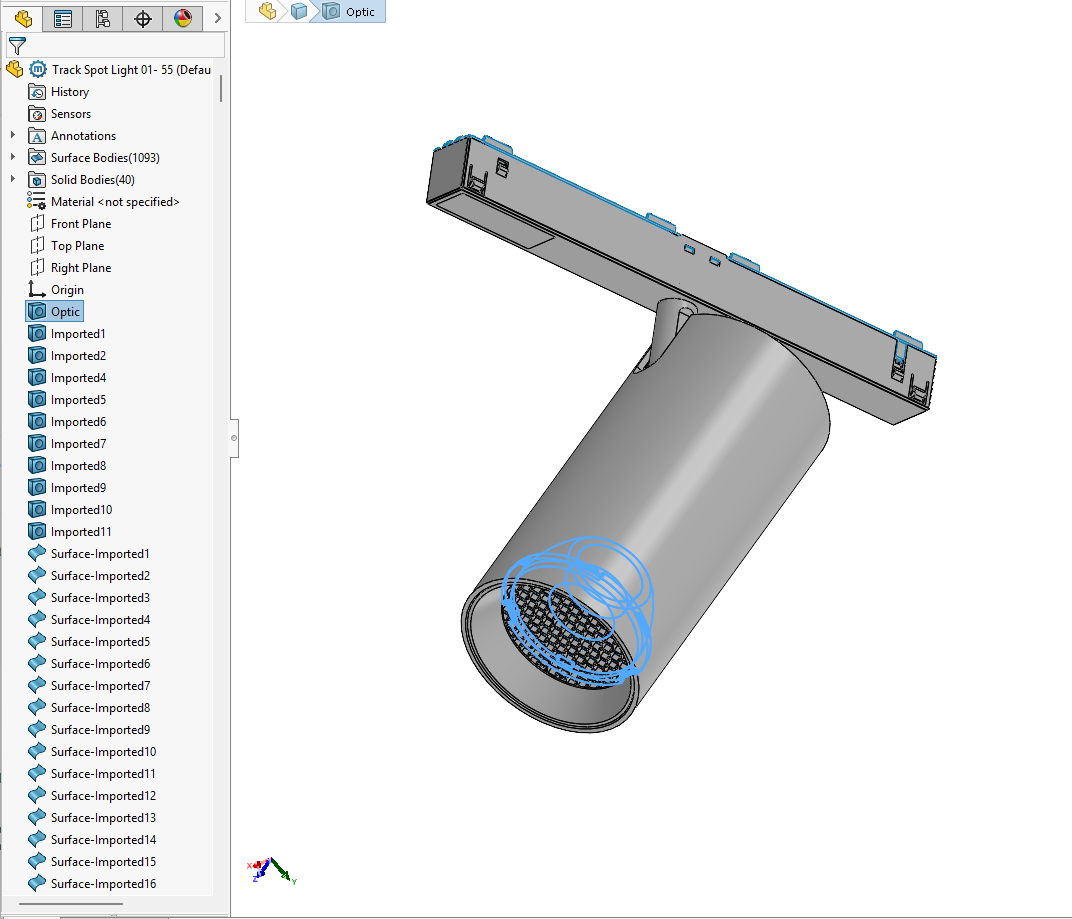
Menu names and export options vary by version and licence. Check one representative SAT from Fusion before converting a full range.
A 700 or 400 SAT header identifies ACIS 7.0 or 4.0. Check the actual export; changing the file extension or editing the header does not convert geometry.
In your CAD software
Autodesk Fusion export settings
File → Export → Type: SAT Files (*.sat)
Choose SAT Files (*.sat), select a local folder and Export. Autodesk identifies SAT 7 as Fusion’s SAT format. SAT export requires an eligible licence; Personal Use does not include it. Keep the required solid bodies in a prepared design and verify their dimensions after export.
Open Export
Choose File → Export to save a local CAD file.
Select SAT and save locally
Set Type to SAT Files (*.sat), choose a folder on your computer, then Save or Export. The button label varies by release.
Before BIMMER: re-open the SAT, check the required bodies and measure a known dimension. Then upload the SAT + matching IES. Menus may vary by software version.
Direct support status
| Input | Directly accepted? | Required action |
|---|---|---|
| Fusion design / F3D | No | Use an eligible Fusion licence to export SAT, or use another verified intermediary. |
| Fusion SAT verified at ACIS 7.0/4.0 | Yes | Requires an eligible licence; inspect the actual export, solids and dimensions. |
| STEP imported to Fusion then SAT | With preparation | Repair, simplify and confirm units before export. |
| IES | Yes | Match it to the exact geometry/product variant. |
Fusion 360 to Revit uses the required ACIS boundary
Autodesk documents SAT under File → Export and excludes that format from Personal Use. Export availability is a licence question; compatibility is a file question. Verify the produced SAT version, body structure and units before upload. A design filename or application name alone cannot establish compatibility.
Cloud design does not remove the preparation step
Whether the source is native Fusion geometry or an imported STEP, BIM preparation is a modelling decision. Remove internals, preserve the product envelope and material zones, identify the emitting body and check units before creating SAT.
Common failures and what to change
The export includes construction or unwanted components.
Isolate the BIM-ready components/body set in a dedicated design before export.
SAT is not offered in the export list.
Check the Fusion licence: Autodesk excludes SAT export from Personal Use. Use a licence that exposes SAT or another verified ACIS 7-capable intermediary.
An imported STEP has disconnected surfaces.
Repair/stitch it to solids in Fusion or use another healing tool before SAT export.
The file has the wrong scale.
Confirm the source document units and measure the exported SAT before BIMMER.
Questions manufacturers ask
Does BIMMER accept an F3D file?
No. Export the simplified Fusion design as SAT first, then pair the SAT with IES.
Can Fusion be used between STEP and BIMMER?
Yes. Import and repair the STEP, simplify it, export SAT, and verify dimensions and solids before upload.
Is BIMMER a direct Fusion 360 to Revit converter?
No for native Fusion or F3D files. Use eligible Fusion SAT export or another verified intermediary, then provide the resulting SAT and IES to BIMMER.
Primary references
- Export a CAD design from Fusion — Autodesk Fusion
- Fusion SAT export availability and licence requirements — Autodesk Fusion
- Fusion engineering: SAT 7 with no separate version selector — Autodesk
- How to import a STEP file into Revit — Autodesk
- Specify an IES file for a light source in Revit — Autodesk