Guides/FAQ
Prepare your files. Find your answers.
To convert a file to Revit, start with the right export. Choose your CAD software below, prepare a text SAT solid, then pair it with IES. Find answers about conversion, your account and plans in the FAQ.
Before you upload
Choose your CAD export route
BIMMER needs text SAT + IES. Export the geometry first; native CAD, STEP and binary SAB are not direct uploads.
- Text .sat
- ACIS 7.0 or 4.0
- Solid geometry
- Known units · mm preferred
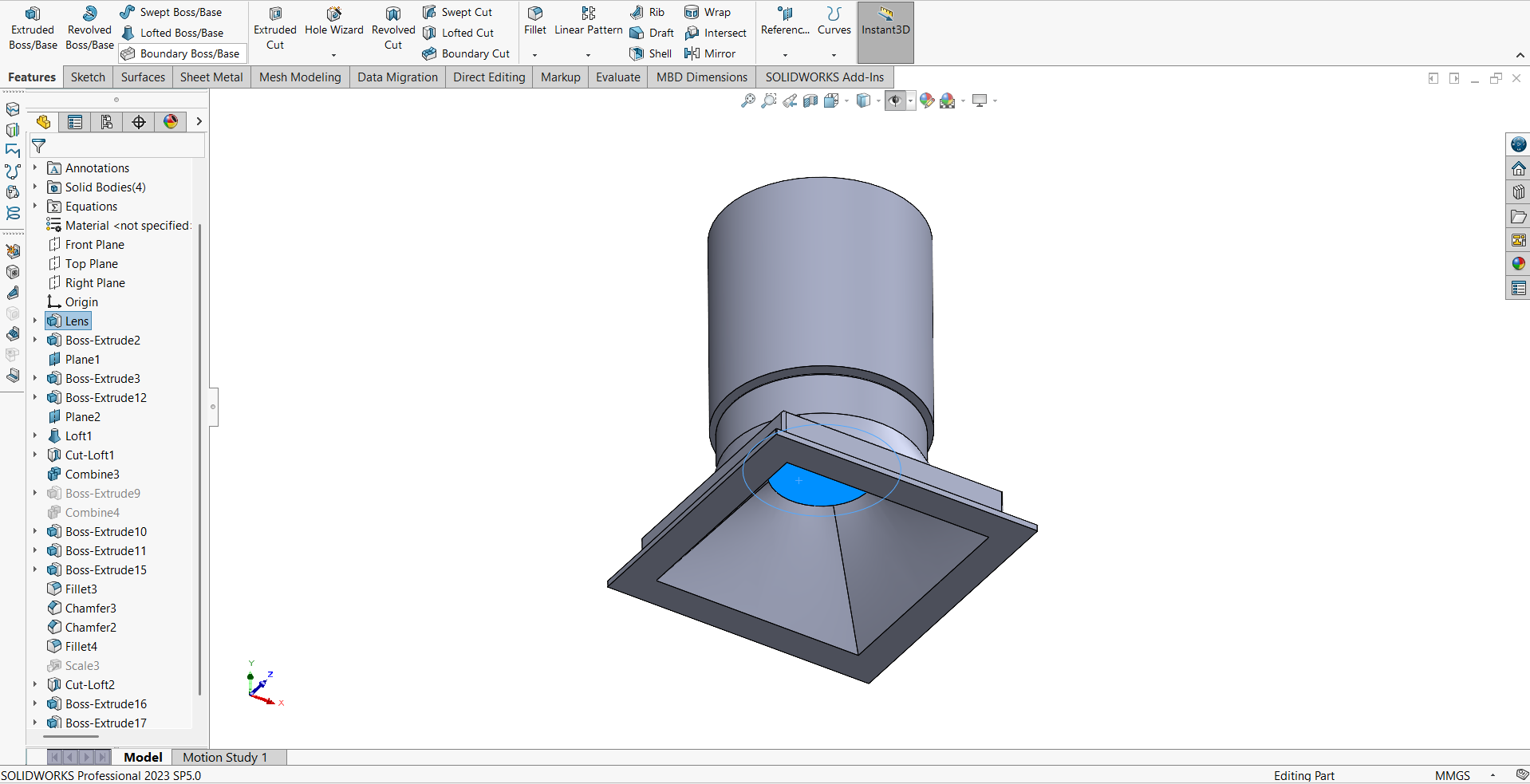
Names help detection. Name the actual light-source parts Lens, Optic, COB, LED, Lamp or Glass. Keep holders labelled as holders; name mounting parts Canopy, Mounting foot or Backplate.
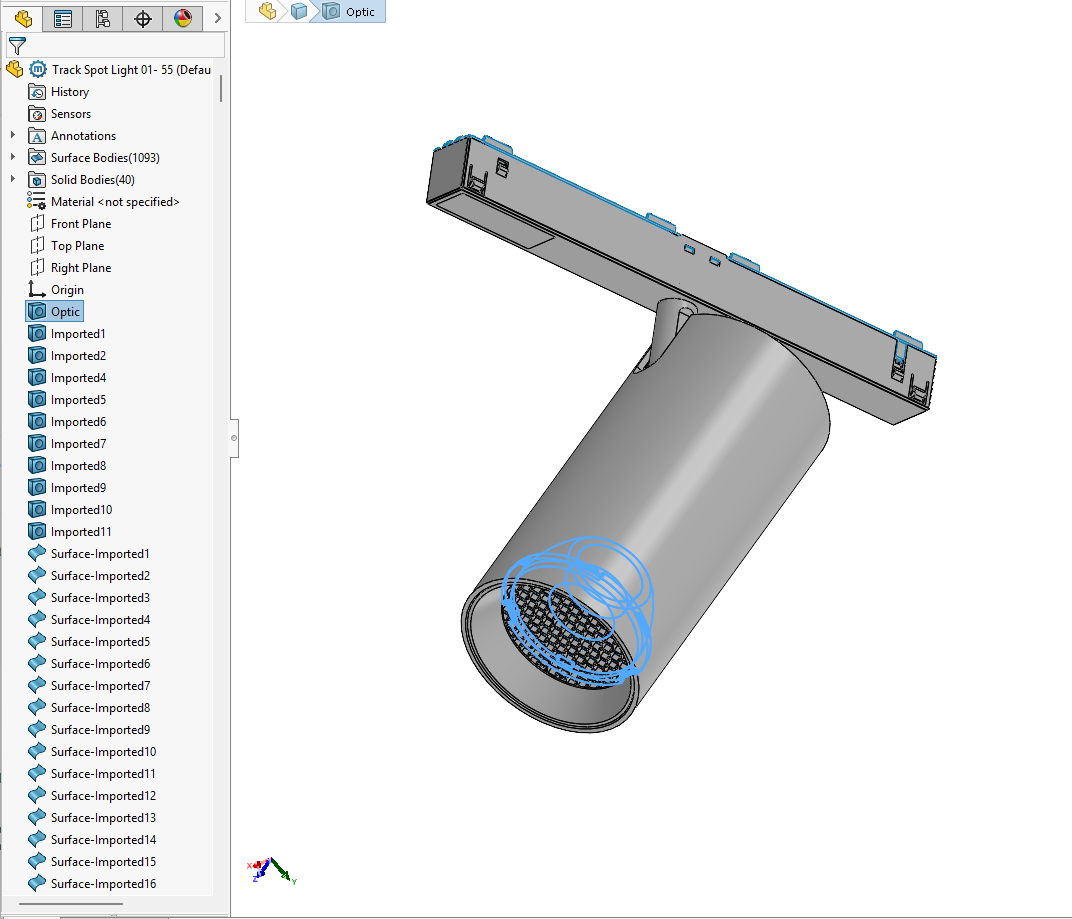
A 700 or 400 SAT header identifies ACIS 7.0 or 4.0. Check the actual export; changing the file extension or editing the header does not convert geometry.
Find the right workflow
How to convert a 3D CAD model and IES file into a Revit file
Convert a 3D CAD model and IES file into a Revit 2025+ lighting-family RFA, including the required text ACIS SAT preparation and verification.
How to convert a SAT file and IES into a Revit family
Convert a text ACIS SAT file and matching IES into a verified Revit 2025+ RFA, with ACIS-version, body-order and output checks.
How to use an IES file in a Revit lighting family
Use an IES file in a Revit lighting family, understand why IES is not geometry, and pair it with text ACIS SAT to produce a verified RFA.
How to convert a STEP file and IES into a Revit family
Convert a STEP or STP file to a Revit lighting family through a verified ACIS SAT 7.0/4.0 intermediary, then pair it with matching IES.
SolidWorks to Revit: create a lighting family with IES
Export a SolidWorks luminaire as ACIS SAT 7.0 or 4.0, pair it with IES in BIMMER and produce a verified Revit 2025+ RFA.
How to export ACIS SAT 7.0 for Revit
Why BIMMER’s Revit workflow requires ACIS SAT 7.0 or 4.0, how to export it, and how to diagnose empty or broken geometry.
Inventor to Revit: create a lighting family with IES
Prepare an Autodesk Inventor luminaire, export ACIS SAT 7.0, pair it with IES in BIMMER and create a verified Revit RFA.
Fusion 360 to Revit: create a lighting family with IES
Export a simplified Autodesk Fusion luminaire to ACIS SAT, pair it with IES in BIMMER and create a verified Revit 2025+ lighting family.
Rhino to Revit: create a lighting family with IES
Export solid Rhino luminaire geometry as ACIS SAT 4.0, pair it with IES in BIMMER and create a verified Revit 2025+ RFA.
Creo to Revit: create a lighting family with IES
Export Creo lighting geometry directly as ACIS SAT 7.0 or 4.0, preserving separate solids. Pair it with IES in BIMMER to create a Revit lighting family.
CATIA to Revit: create a lighting family with IES
Prepare CATIA lighting geometry through STEP and a SAT-capable intermediary. Simplify large assemblies into a multibody part before SAT export.
Revit family creation for lighting manufacturers
Create BIM content for a lighting manufacturer by converting SAT and IES into owned, verified Revit families with batching and private library storage.
How to batch-convert a lighting catalogue to Revit
Organise SAT and IES variants into BIMMER batch rows, download RFA ZIPs, store product versions and re-issue a manufacturer BIM catalogue.
Revit lighting family quality checklist
A manufacturer checklist for Revit lighting families: geometry, scale, orientation, light source, IES, parameters, materials and final RFA verification.
Edit fixture parameters before you generate
How to edit fixture data, choose the light source and mounting, name each IES variant, and check the resulting Revit Family Types.
No guide matches that search. Ask Ji to check your format.
Direct support status
| Input | Directly accepted? | Required action |
|---|---|---|
| Text ACIS .sat geometry | Yes | Export as a solid at ACIS 7.0 or 4.0; millimetres are recommended. |
| Binary ACIS .sab geometry | No | Re-export or translate it to text ACIS SAT 7.0 or 4.0 first. |
| IES LM-63 photometry | Yes | Pair the IES with the matching luminaire geometry. |
| STEP / STP | No | Open, simplify and export the geometry to ACIS SAT before using BIMMER. |
| Native CAD such as .sldprt, .ipt or .3dm | No | Use the CAD application or a suitable intermediary to export SAT first. |
The BIMMER workflow
- Choose the guide for your source CAD system or conversion question.
- Prepare a simplified solid, preserve separate bodies where materials matter, and export ACIS SAT 7.0 or 4.0.
- Pair the text SAT with the correct IES, generate the family, then check geometry, light-source placement and parameters in the result.
Convert a file to Revit: choose the source first
A lighting product needs a reusable RFA family. Your CAD export supplies the solid geometry; your IES supplies the photometry. BIMMER combines them into the lighting family.
- Converting a CAD source: choose SolidWorks, Inventor, Fusion, Rhino, Creo / Pro-E, CATIA or STEP.
- Preparing the accepted geometry: use the SAT/IES workflow and ACIS 7 export guides.
- Managing a catalogue: use the manufacturer and batch-conversion guides.
- Reviewing output: use the quality and family-parameter guides.
What “BIM file” means here
Customers often ask for a BIM file or Revit file. In this workflow the deliverable is an Autodesk Revit lighting-fixture family with the .rfa extension. The geometry comes from text SAT, while the IES provides the real photometric distribution; neither source file is a finished BIM object by itself.
Common failures and what to change
The source file is STEP or a native CAD file.
Do not upload it directly. Follow the relevant export guide and create SAT 7.0 or 4.0.
The SAT imports as nothing or has broken geometry.
Check the ACIS version, solid output, units and model detail; remove screws, wiring and hidden internals.
The light looks wrong although the geometry is correct.
Confirm the IES belongs to that product. Name the actual optical parts Lens, Optic, COB, LED, Lamp or Glass; names help detection. Check the selected body, beam direction and source position in Preview. Name holders as holders so they are not mistaken for the optical exit.
Questions manufacturers ask
Can I upload a STEP, SAB or SolidWorks file directly?
No. BIMMER directly accepts text ACIS SAT geometry plus IES. Export or convert binary SAB, STEP, SLDPRT and other native CAD formats to text SAT 7.0 or 4.0 first.
What Revit file does BIMMER return?
BIMMER returns a Revit 2025 lighting-fixture family with the .rfa extension. Revit files open forward in Revit 2025 and newer releases.
Can BIMMER convert any file to Revit?
No. BIMMER is a lighting-family converter for prepared text ACIS SAT geometry plus IES photometry. Use the source-format guides to turn supported CAD sources into the required SAT first.
Primary references
- About importing ACIS objects into Revit — Autodesk
- Specify an IES file for a light source in Revit — Autodesk
- IES lighting standards library, including LM-63 — Illuminating Engineering Society