Output verification
Revit lighting family quality checklist
Approve a manufacturer Revit lighting family only after checking physical dimensions and origin, mounting/orientation, usable geometry and materials, light-source position and aim, exact IES assignment, schedule parameters, file version and a clean placement test. BIMMER automates pipeline gates, but the manufacturer remains the authority for catalogue identity and visual approval.
Direct support status
| Input | Directly accepted? | Required action |
|---|---|---|
| BIMMER-generated Revit 2025+ RFA | Yes | Run the checklist in a clean Revit test project before publication. |
| RFA for Revit 2024 or older | No | BIMMER currently generates on Revit 2025; Revit files do not save backward. |
| Text SAT source | Yes | Keep it with the approved output for geometry traceability. |
| IES source | Yes | Record the exact revision/variant used by the family. |
The BIMMER workflow
- Open the RFA and place it in a clean Revit 2025+ project using the intended host/orientation.
- Measure width, depth, height, aperture/cut-out and mounting reference against the approved datasheet/CAD.
- Inspect geometry at useful detail levels, materials, origin and rotation; look for fractured or internal manufacturing detail.
- Turn on the light source/photometric web and verify position, aim, IES variant, lumens, watts and type data.
- Schedule/tag the family, change editable parameters, purge/test file weight, then record approval and source revisions.
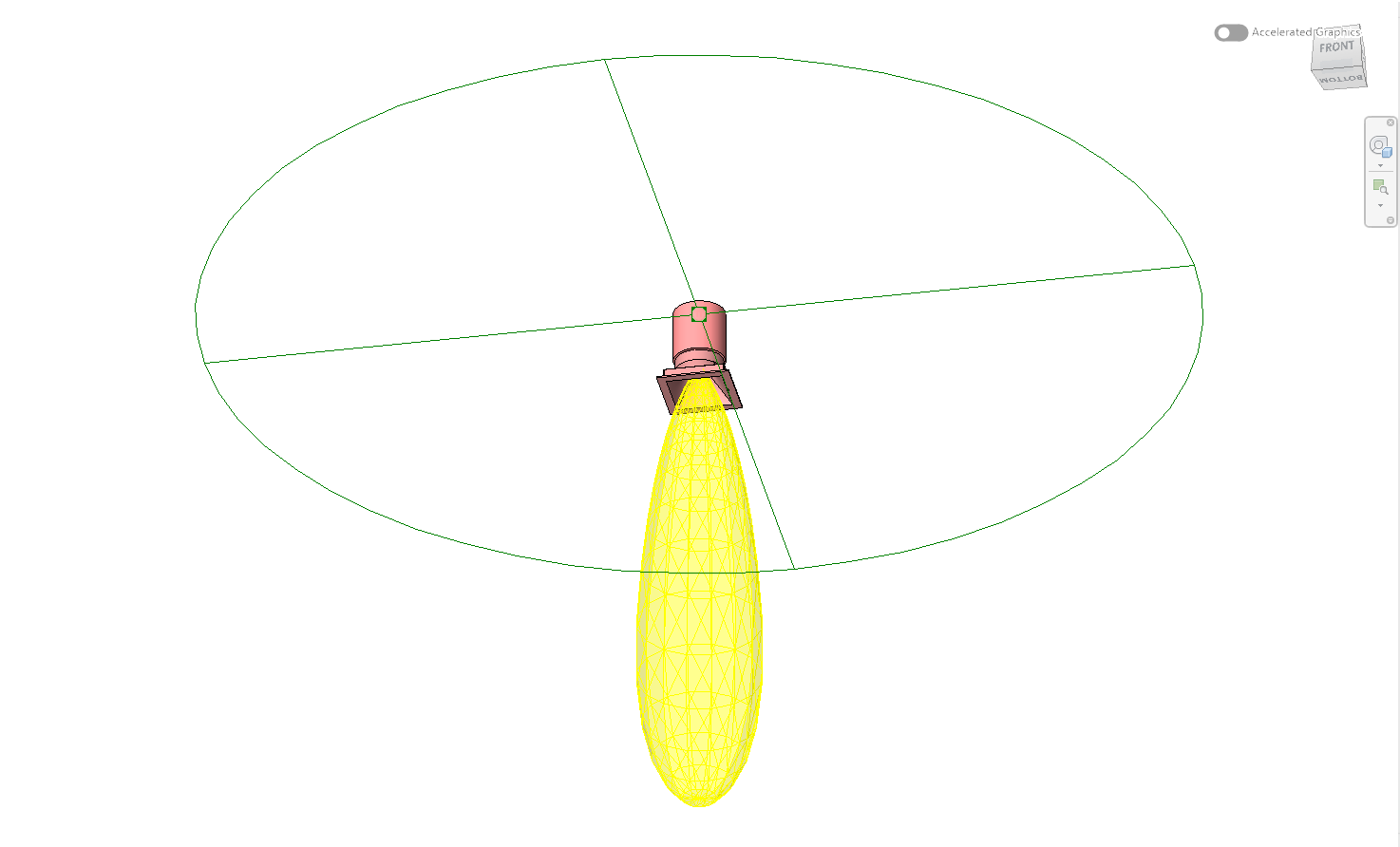
Geometry and placement checks
The family should occupy the correct envelope, sit on the intended reference plane and rotate/host predictably. Check separate parts and materials only where they add specification or visual value. A technically importable model can still fail users if its origin, cut-out or orientation is wrong.
- Known dimensions match CAD/datasheet.
- Aperture and mounting reference are correct.
- No unexpected internal bodies or broken faces.
- Materials can be controlled where promised.
Photometry and data checks
Display the photometric web and compare its direction with the real luminaire. Confirm the exact IES revision and catalogue variant, then check visible Type Properties and schedule fields. Do not infer missing test data from a similar product.
- Light source is located at the emitting aperture/body.
- Photometric web points in the intended direction.
- IES, lumen package, watts and CCT correspond to the variant.
- Product code, manufacturer and schedule fields are accurate.
Common failures and what to change
The RFA opens but cannot be placed as intended.
Review the source orientation and family mounting/origin assumptions; regenerate after correcting the SAT.
The photometric web is rotated or offset.
Correct the emitting-body order/orientation and confirm the IES coordinate system, then generate again.
Parameters look complete but contain guessed values.
Remove or leave editable any value that is not supported by IES, CAD, datasheet or manufacturer input.
Questions manufacturers ask
Does “verified” remove the need for manufacturer review?
No. BIMMER verifies technical pipeline conditions; the manufacturer must approve product identity, catalogue variant and visual/placement accuracy.
Which Revit versions open the output?
BIMMER currently produces on Revit 2025. The RFA opens in Revit 2025 and newer, not 2024 or older.
Primary references
- Specify an IES file for a light source in Revit — Autodesk
- About importing ACIS objects into Revit — Autodesk
- IES lighting standards library, including LM-63 — Illuminating Engineering Society