Photometry guide
How to use an IES file in a Revit lighting family
To use an IES file in a Revit family, pair it with the matching text ACIS SAT geometry. The IES describes how the luminaire distributes light but does not contain its 3D housing. BIMMER places and aims the Revit light source, assigns the IES photometric web and carries relevant product values into a Revit 2025+ RFA.
Direct support status
| Input | Directly accepted? | Required action |
|---|---|---|
| IES LM-63 file | Yes | Use the measured file for the exact product, optic and operating condition. |
| LDT / EULUMDAT | No | Obtain a valid IES version from the photometric lab or a trusted conversion workflow first. |
| IES without geometry | No | Pair it with the matching text SAT luminaire model. |
| Text SAT plus IES | Yes | This is the complete BIMMER input pair. |
The BIMMER workflow
- Select the IES measured for the exact catalogue code, beam, lumen package and optic—not a visually similar product.
- Validate the file and review extracted values such as lamp lumens and electrical data; resolve malformed headers or impossible values.
- Pair the IES with the matching text SAT in a BIMMER row and confirm the intended light-emitting body.
- Generate, then inspect the photometric web direction and Type Properties in Revit.
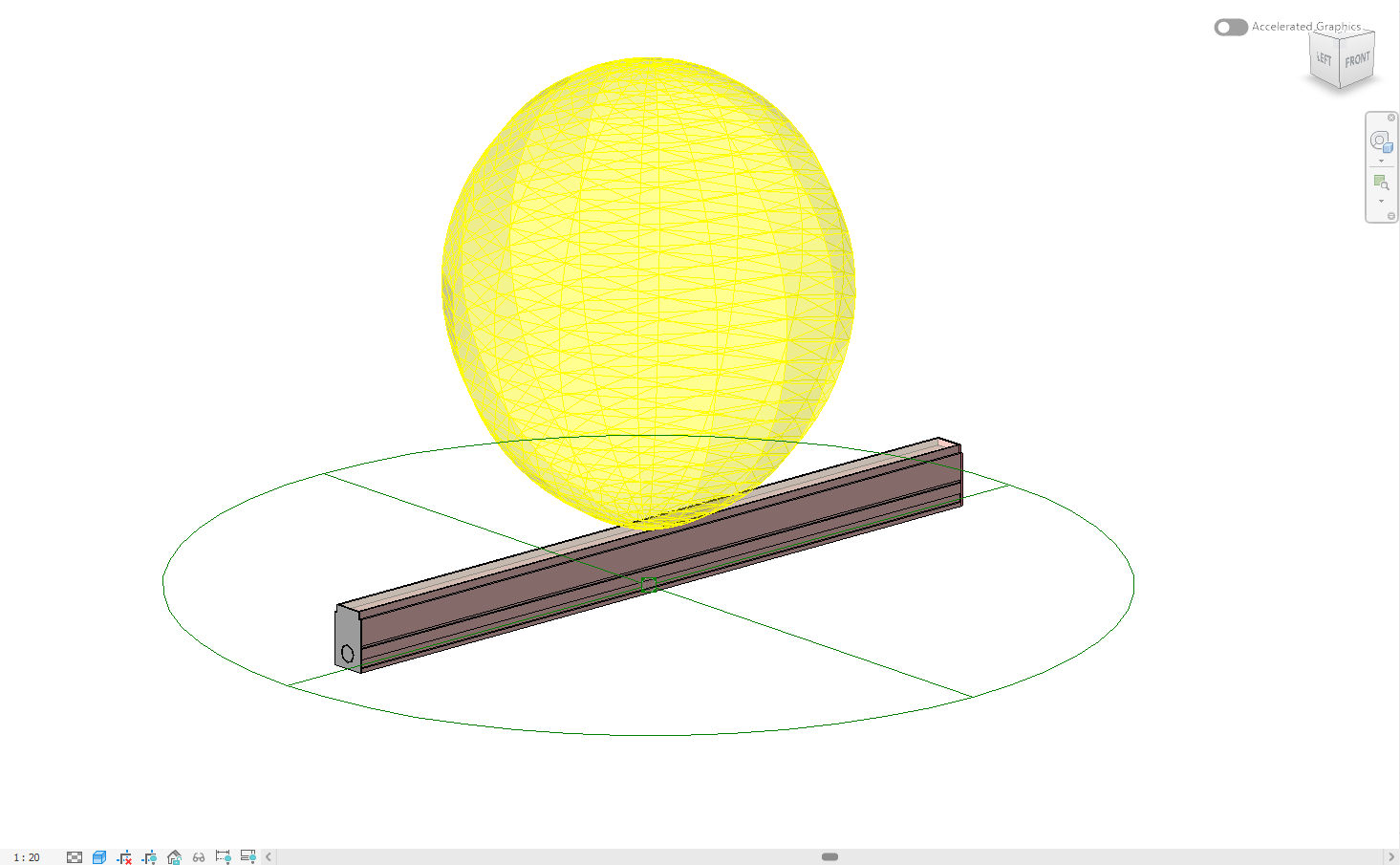
IES file to Revit family: geometry is still required
IES LM-63 data records luminous intensity around a source and related metadata. It can make a Revit light calculate and render like the measured luminaire, but it cannot show the housing, aperture, bracket or mounting detail. That geometry comes from CAD.
This distinction is why “convert IES to BIM” is incomplete. A manufacturer-quality family combines a simplified coordination model with the measured distribution and structured parameters.
Variant control matters
One housing may have narrow, medium and wide optics, several colour temperatures and different lumen packages. Keep the CAD-to-IES pairing explicit. BIMMER batch rows can reuse one SAT across several IES files, but each output is still a distinct family generated from a known pair — except a fitting reviewed as one family with an IES for each head, which makes one family for one credit from several files (where that option is available on your account).
Common failures and what to change
The family emits in the wrong direction.
Check how the emitting body is oriented and that BIMMER chose the right part (a part named like a light source with no support word such as leg or stand, or a recognised optical shape, is trusted; a tree-order guess is shown for confirmation), then verify the IES coordinate convention in Revit.
Calculated output does not match the datasheet.
Confirm the exact IES variant and review its lumens/watts metadata; do not substitute a family-level “typical” file.
The IES parser rejects the file.
Request a standards-compliant LM-63 export from the laboratory rather than hand-editing measurement rows.
Questions manufacturers ask
Can I convert an IES file to a Revit file or RFA?
Not from IES alone. The IES supplies photometry but no product geometry, so BIMMER requires a matching text SAT model as well.
Can one SAT be paired with several IES files?
Yes. Put one SAT and several matching IES variants in a batch row; BIMMER creates one family for each SAT × IES pair.
Primary references
- Specify an IES file for a light source in Revit — Autodesk
- IES lighting standards library, including LM-63 — Illuminating Engineering Society
- About importing ACIS objects into Revit — Autodesk