Catalogue operations
How to batch-convert a lighting catalogue to Revit
To batch convert a lighting catalogue to Revit, make each BIMMER row one valid product grouping. Add one or more prepared text SAT models and matching IES files; the row generates every intended SAT × IES pair. Download completed RFA files as a ZIP, save approved outputs with their sources in the BIM Library, and re-issue later versions from the stored record.
Direct support status
| Input | Directly accepted? | Required action |
|---|---|---|
| One SAT + one IES | Yes | Creates one family. |
| One SAT + several IES variants | Yes | Creates one family per IES variant, except a fitting reviewed as one family with an IES for each head, which makes one family for one credit from several files (where that option is available on your account). |
| Several SAT + one IES | Yes | Creates one family per geometry variant. |
| Native CAD/STEP/SAB batch | No | Prepare every geometry file as text SAT before batching. |
The BIMMER workflow
- Create a source register with product code, geometry revision, IES revision, optic/CCT and intended output name.
- Prepare all geometry to the same SAT 7.0/4.0 standard and run a representative pilot before the full range.
- Build one BIMMER row per product grouping; add only combinations that are real catalogue variants, then generate.
- Resolve failed pairs individually, download the ready outputs as ZIP and file approved results in the BIM Library.
- For a change, edit identity data or replace IES and re-issue; keep the prior version for traceability where policy requires it.
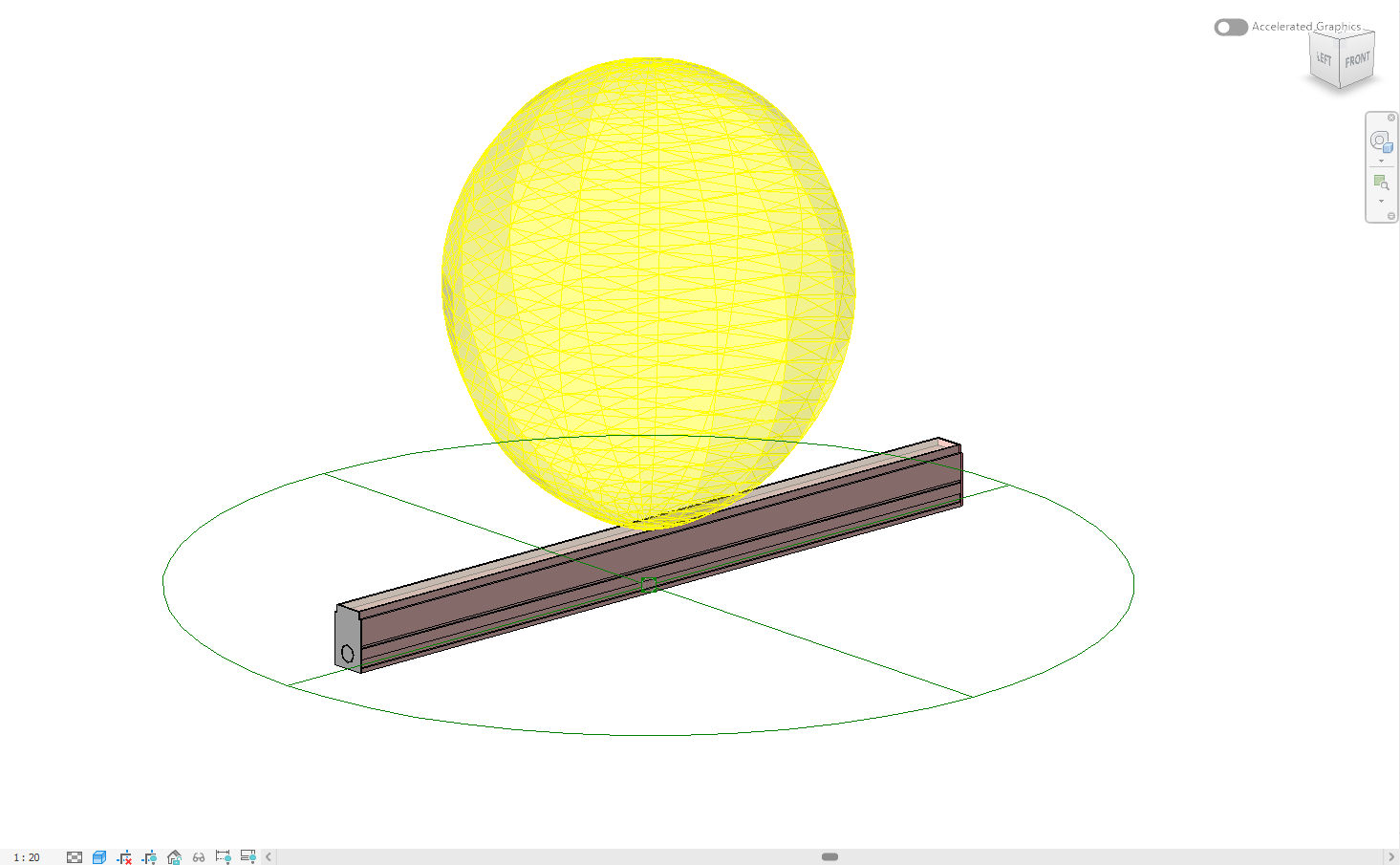
Batch convert to Revit without inventing product combinations
A row with two SAT files and three IES files represents six outputs, except a fitting reviewed as one family with an IES for each head, which makes one family for one credit from several files (where that option is available on your account). That is efficient only when all six combinations are valid products. Split rows when a geometry supports only some optics; automation should reflect the catalogue truth, not invent combinations.
ZIP delivery and library records have different jobs
The ZIP is convenient for a release handoff. The BIM Library is the long-term product record: each successful family can stay with the SAT and IES used to create it, making re-download and re-issue possible without reconstructing the source mapping.
Common failures and what to change
A batch creates nonexistent product combinations.
Split the row so each SAT × IES cross-product contains only saleable/approved variants.
Output filenames collide or cannot be traced.
Use stable product codes and variant tokens; validate names in the source register before generation.
One bad SAT blocks confidence in the range.
Pilot each geometry pattern and isolate failed pairs; do not relabel a failed output as ready.
Questions manufacturers ask
What does one BIMMER batch row create?
It creates every SAT × IES combination in that row, except a fitting reviewed as one family with an IES for each head, which makes one family for one credit from several files (where that option is available on your account). One SAT and three IES files create three families; use separate rows when not every pairing is valid.
Can I update an existing product later?
Yes. Keep the approved source/result in the BIM Library, then replace the IES or edit product identity data and re-issue a new version.
Can BIMMER bulk-create Revit families for a catalogue?
Yes. Prepare every geometry source as text SAT, map only valid SAT and IES variants in each row, then generate and download the verified RFA results together.
Primary references
- Specify an IES file for a light source in Revit — Autodesk
- IES lighting standards library, including LM-63 — Illuminating Engineering Society
- About importing ACIS objects into Revit — Autodesk